← rami.party Glamours

Userscripts for the web apps you're stuck with

Small pieces of code your browser runs on a website you don't control, so it behaves the way it should have in the first place. Three things to do, in order.

1 Read me first

What these are

A userscript is a text file your browser loads on the sites named inside it. It can restyle a page, add a panel, or fill in a field: anything you could do by hand, done for you.

What you need

One extension, set up once: Tampermonkey. About two minutes, and then you never touch it again. The steps are below, with pictures.

What to know

A userscript runs with full access to the pages it matches, which is exactly why it can fix them. Only run ones you, or someone you trust, have read. Every script here is plain commented source you can open before installing.

What they don't do

No network requests, no analytics, nothing leaves your browser. Settings stay on your machine, and every feature has an off switch.

Not allowed to install extensions? Skip to running them from a bookmark at the bottom of this page.

2 Setup steps

Once, in this order. The pictures are Microsoft Edge; Chrome looks all but identical. On Firefox, only the first step applies.

  1. Install Tampermonkey

    Get it from tampermonkey.net or your browser's add-on store, and let the install finish.

    Install one manager: two will run the same script twice. Prefer a different one?

  2. Open the extension's settings

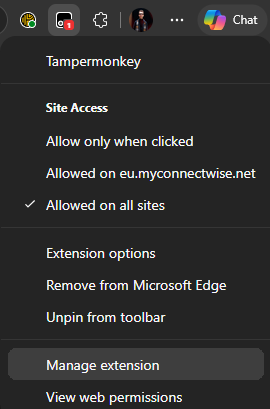
    Right-click the Tampermonkey icon in the toolbar and choose Manage extension. While that menu is open, set Site Access to Allowed on all sites.

    The Tampermonkey toolbar menu, showing Site Access set to Allowed on all sites and the Manage extension entry near the bottom.
    Microsoft Edge. Click to open full size.
  3. Switch on Allow User Scripts

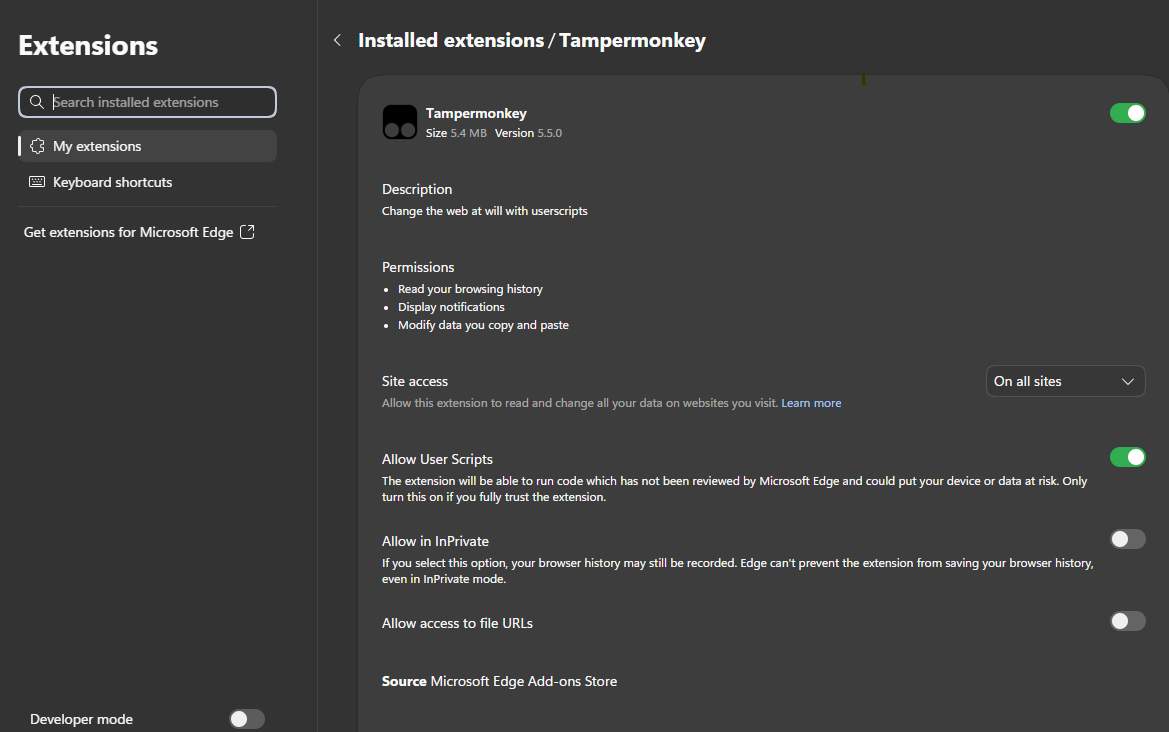
    On the page that opens, turn Allow User Scripts on. Check that Site access reads On all sites while you are there.

    The Tampermonkey extension page, with Site access set to On all sites and the Allow User Scripts toggle switched on.
    Click to open full size.

    Chrome and Edge split this in two on purpose: the permission on its own shows no warning at install time, so the toggle makes running userscripts a decision you took knowingly. If your browser is old enough not to show the toggle, switch on Developer mode at the bottom of the extensions page instead. Firefox needs neither.

  4. Install a script

    Press Install userscript on any script in the catalogue. Tampermonkey opens its install screen with the full source, so you can read it, confirm, then visit the site. Updates arrive on their own after that.

Prefer a different manager?

Everything here is a standard .user.js file, so any of these will run it.

ManagerBrowsersLicenceNotes
Tampermonkey Chrome, Edge, Firefox, Safari, Opera Free, closed source The default: most used, best tested, cloud sync.
Violentmonkey Chrome, Edge, Firefox, Opera, Firefox Android MIT, open source Auditable, asks for fewer permissions. Same scripts.
Greasemonkey Firefox MIT, open source The 2005 original. Dropped some old APIs, so older scripts can fail.
FireMonkey Firefox MPL-2.0, open source Scripts and styles in one extension. Small user base.

3 Scripts

The library lives on its own page, where you can search it and filter by site. Each entry lists what it does, how it works and where it falls short, with the full source one click away.

Browse all scripts

No extension needed below this line

Optional: nothing below needs an extension

Other ways to run these

If extensions are blocked on your machine, or you only want a tweak for five minutes, these work without installing anything.

Bookmarklet

A bookmark whose address is the script itself. Drag the bookmarklet button from any script in the catalogue onto your bookmarks bar, then click it on any page. The whole script travels inside the bookmark, so nothing is fetched when you click it.

No install rights needed · one click per visit · starts when you click, not when the page loads

Stylus

An extension for user styles: CSS only, no script execution, so it needs far less trust. The ConnectWise glamour ships a CSS-only half, cw-manage-eu.user.css: open that file with Stylus installed and it offers to install it.

Persistent · applies itself · cannot add panels or behaviour

DevTools overrides

Chrome and Edge keep your own CSS edits across reloads: DevTools → Sources → Overrides, pick a folder, edit the stylesheet. Firefox has Style Editor for the session.

Built into the browser · survives reloads · fiddly, per machine

uBlock Origin filters

If you only need to hide something and already have uBlock: dashboard → My filtersexample.com##.annoying-thing.

Nothing extra to install · hide-only · no restyling

Firefox userContent.css

Firefox loads chrome/userContent.css from your profile at startup. Wrap rules in @-moz-document domain("example.com") { … } and enable toolkit.legacyUserProfileCustomizations.stylesheets.

Pure browser feature · CSS only · restart per change

Per-site zoom

Ctrl + + or is remembered per site by every browser. The no-code answer to "this text is too small", and the baseline any tweak should beat.

Zero setup · scales everything equally · fixes nothing structural

Rolling this out to a team? IT can push a manager and a script list through managed browser policy (ExtensionInstallForcelist plus the extension's managed storage), so nobody has to do the setup steps at all.